Advanced
How to use Clash to Singbox Converter
Learn how to use the integrated Clash to Singbox converter, including URL mode, advanced templates, and smart parsing.
Read MoreSecure. Fast. Freedom. Support All Platforms
Perfect support for Windows, macOS (Intel & Apple Silicon), Linux, Android, and iOS, meeting all your device needs.
Native support for Reality, TUIC, Hysteria, VLESS and other latest protocols, ensuring stable and efficient connections.
All downloads are from official GitHub, completely open source code, no third-party modifications, ensuring pure and secure.
Enjoy fast and secure internet in 3 simple steps
Copy the subscription link or scan the QR code from your provider.
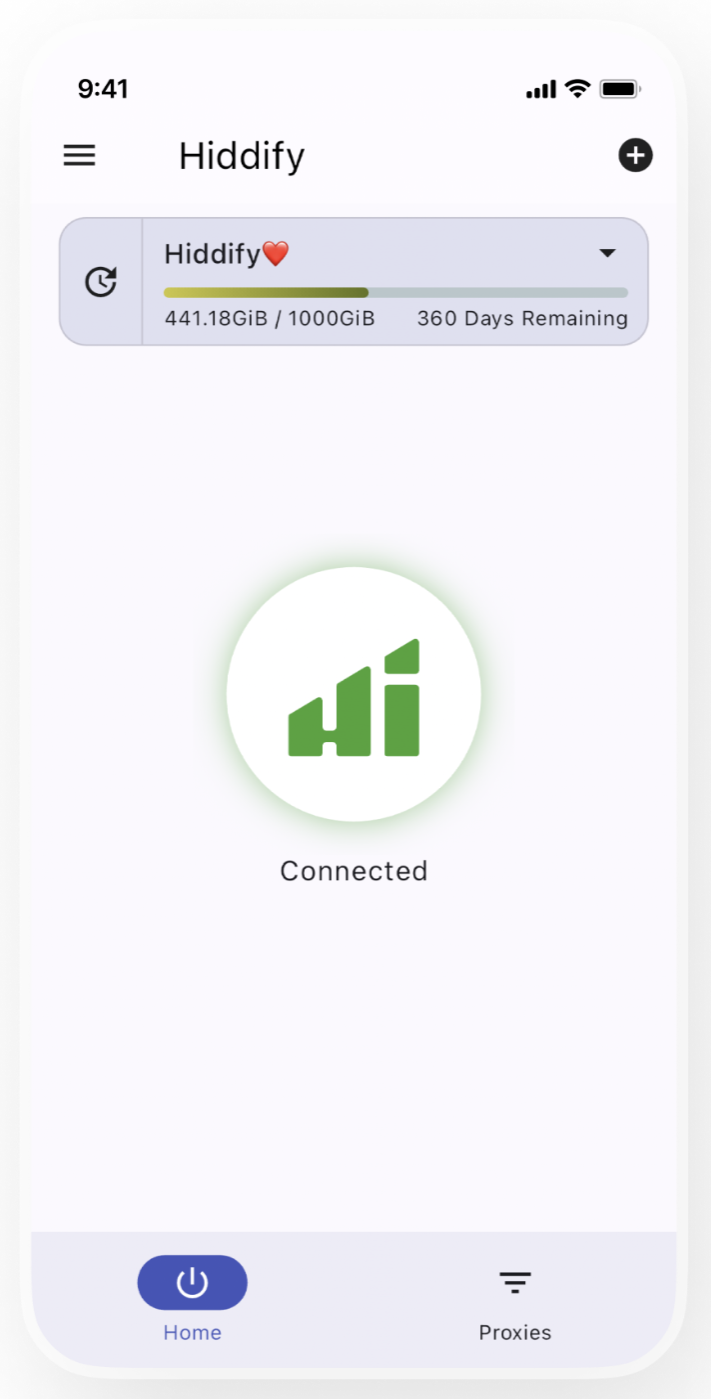
Open Hiddify Next, click the plus icon and paste the link to configure.
Click the big circle button to connect and enjoy a secure, fast network.
Copy the subscription link or scan the QR code from your provider.
Open Hiddify Next, click the plus icon and paste the link to configure.
Click the big circle button to connect and enjoy a secure, fast network.
Learn how to use the integrated Clash to Singbox converter, including URL mode, advanced templates, and smart parsing.
Read MoreHiddify uses port 2334 by default, unlike Clash’s 7890. Learn how to change the port to 7890 for seamless migration.
Read MoreDetailed guide on how to install and configure Hiddify Next on iPhone and iPad, covering App Store installation, TestFlight beta, sideloading, and more. Supports iOS 15.0+.
Read More